OTA updates for repeaters
Guide · updated June 2026
Push new MeshCore firmware to a node without a cable — over Bluetooth on nRF52 boards, or WiFi on ESP32. Perfect for a repeater you don’t want to take down. One hard rule first: on nRF52, the OTAFIX bootloader has to be on there before you try.
Read this first: OTAFIX is not optional
On a stock nRF52 bootloader, an over-the-air update is a coin flip — and a failed one can leave the board with no valid firmware and no easy way back. On a repeater bolted to a roof, that means a ladder and a laptop. Not great.
The OTAFIX bootloader fixes both problems: it makes OTA actually reliable, and if an update does fail, the board falls back into Bluetooth DFU mode and waits — so you just retry over the air instead of climbing up to recover it.
Do not OTA an nRF52 node — especially a remote one — until it’s running OTAFIX. It’s a one-time, 2-minute flash that turns OTA from “risky” into “routine.” → Flash the OTAFIX bootloader first, then come back here. (ESP32 boards like the Heltec V3 don’t use this bootloader — they update over WiFi; see below.)
Tempted to apply OTAFIX itself over the air? You can push the OTAFIX bootloader with the nRF Device Flasher (over Bluetooth) instead of USB — but it’s high-risk. If that flash fails, the board is stranded and you’ll have to recover it from a PC over USB anyway. If it succeeds, you’re clear to OTA normally from then on. The safe play is to put OTAFIX on over USB while the board is in your hand.
start otaBefore you start
- nRF52 only: the node is already on the OTAFIX bootloader.
- You know the node’s admin password.
- Your companion is paired to the MeshCore app, with the node added as a contact.
- nRF52 only: the nRF Device Firmware Update app (by Nordic) is installed on your phone (nRF Connect’s DFU works too).
nRF52 boards — OTA over Bluetooth
RAK4631, Heltec T114, Seeed XIAO, and the rest. Two apps do the work: the MeshCore app kicks the node into update mode, then a DFU app sends the firmware.
-
Install the DFU app
On your phone, install Nordic’s nRF Device Firmware Update (a.k.a. nRF DFU) — the app that actually pushes the firmware.
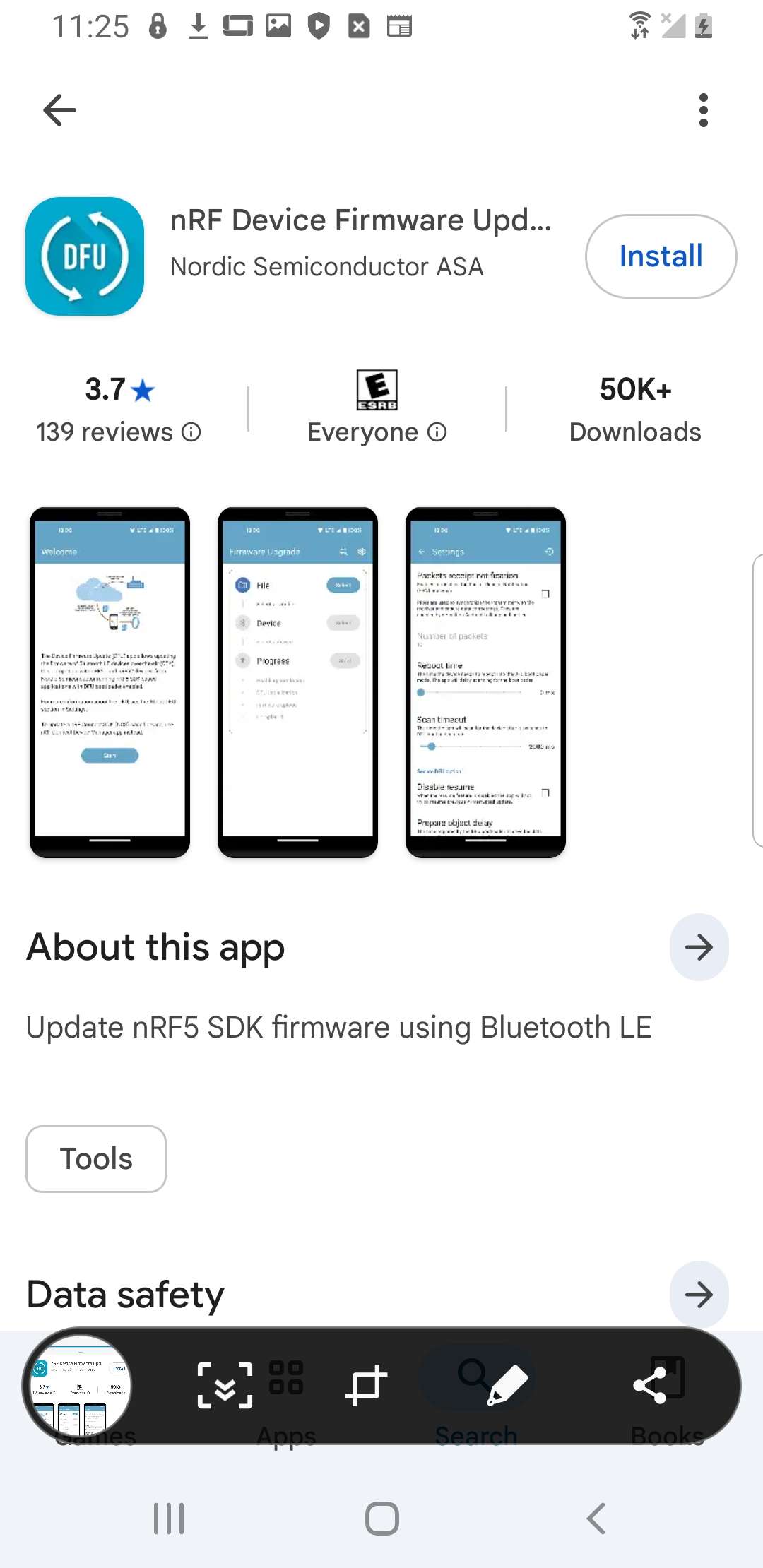
Nordic’s nRF Device Firmware Update, on Google Play. -
Download the firmware
.zipOn GitHub, open meshcore-dev/MeshCore → Releases, find the latest build for your role (e.g. Repeater Firmware v1.16.0), expand Assets, and grab the
.zipfor your board — e.g.RAK_4631_repeater-v1.16.0-….zipon a RAK4631. (The same builds are on flasher.meshcore.io too.)
GitHub → Releases → Assets — the board-specific .zip. -
Put the node in OTA mode
Log into a running node from the app (Manage → admin password), open the Command Line, and send
start ota— it reboots into DFU mode. (A board already in DFU — e.g. fresh from an OTAFIX flash — shows up without this.) It advertises with your board’s name: on a RAK4631 it’s4631_DFU(other boards showRAK4631_OTA,Xiao_NRF52_OTA, etc.).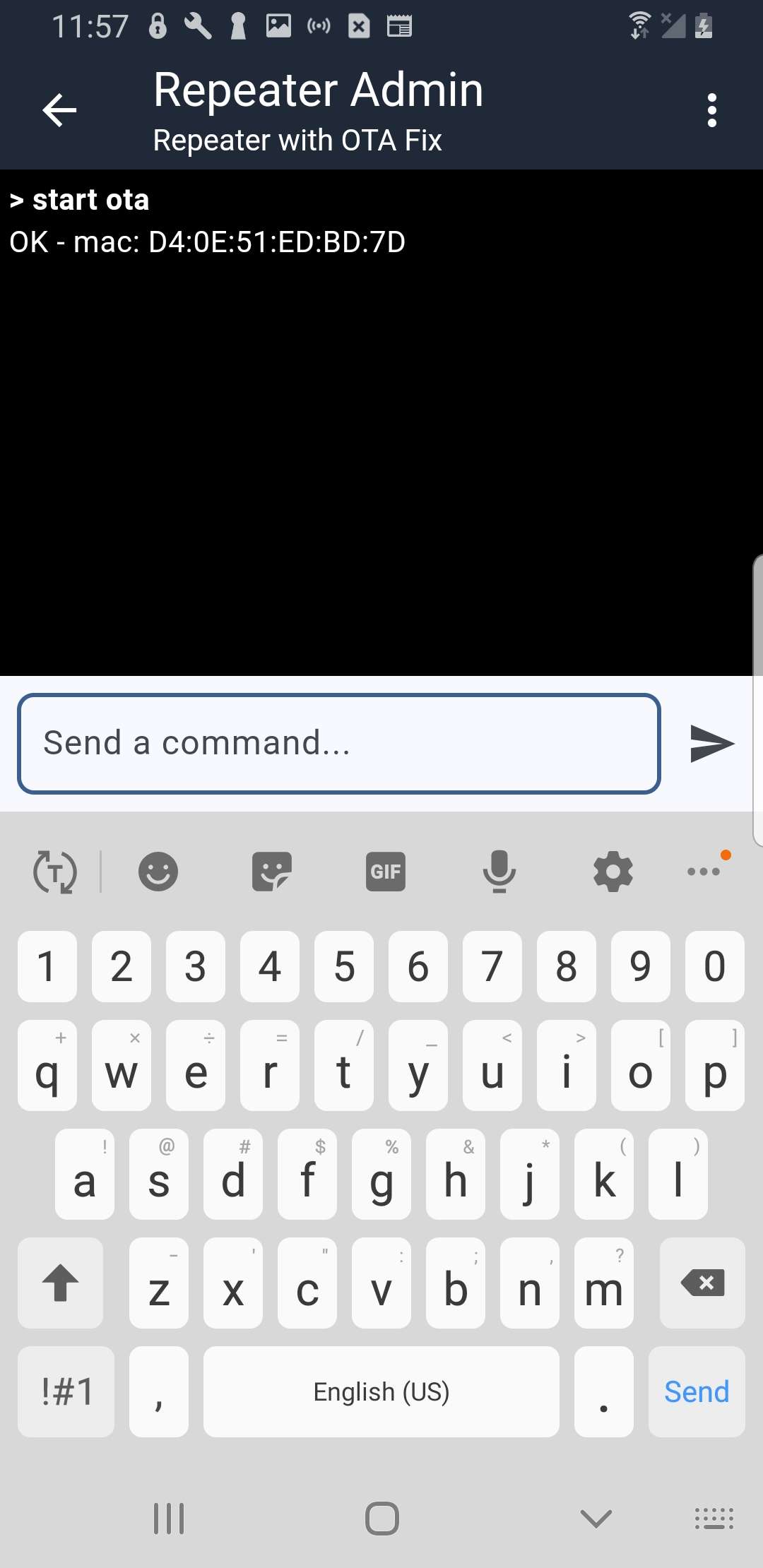
App → Manage → Command Line → start ota. -
Set the DFU app options
Open nRF Device Firmware Update → Settings and match these exactly:
- Packet Receipt Notification (PRN)ON
- Number of packets8
- Request high MTU (Android)OFF
- Disable resumeON
- Prepare object delay0 ms
- Force scanningON
- External MCU DFUOFF
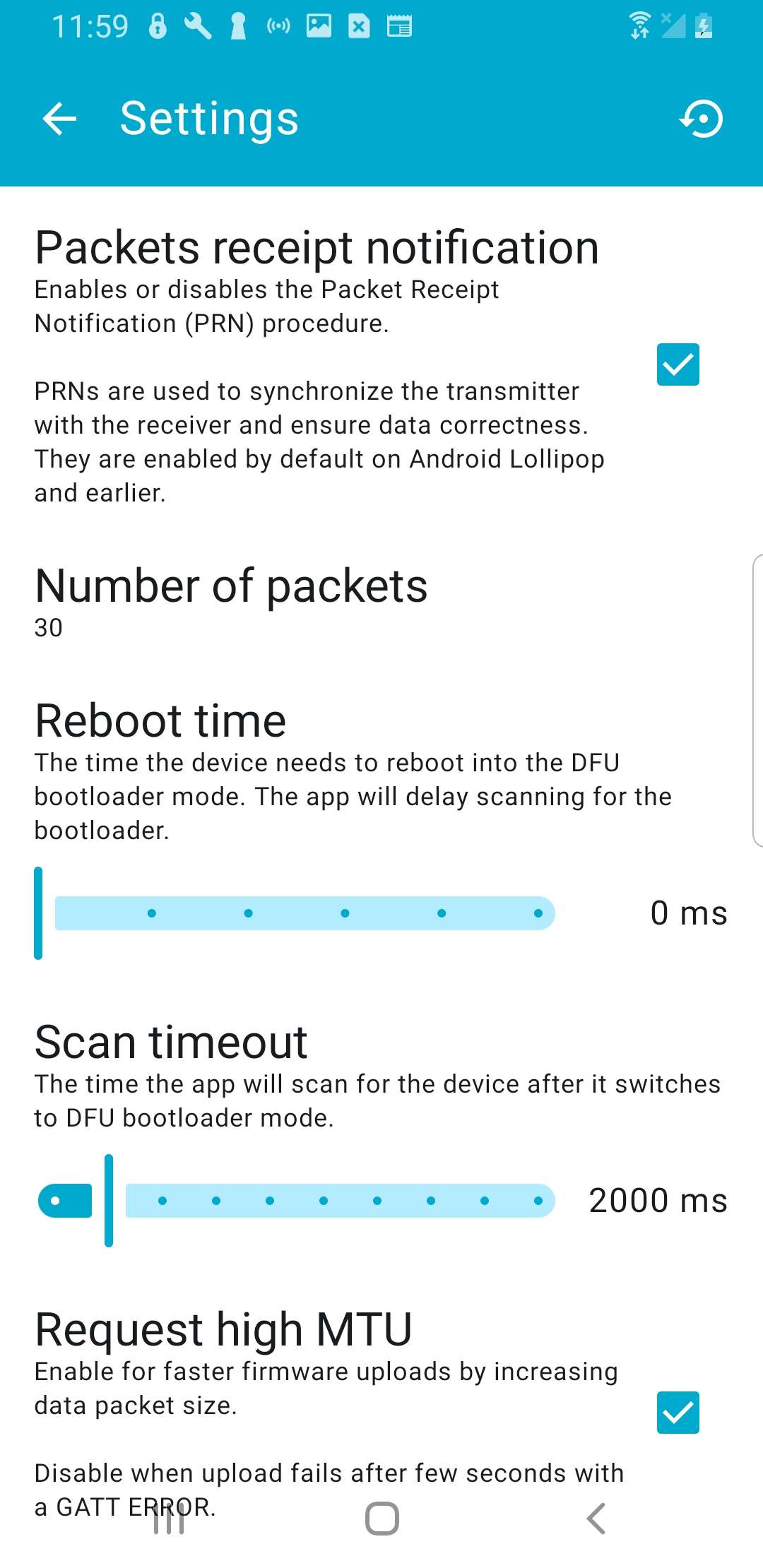
nRF DFU app → Settings. 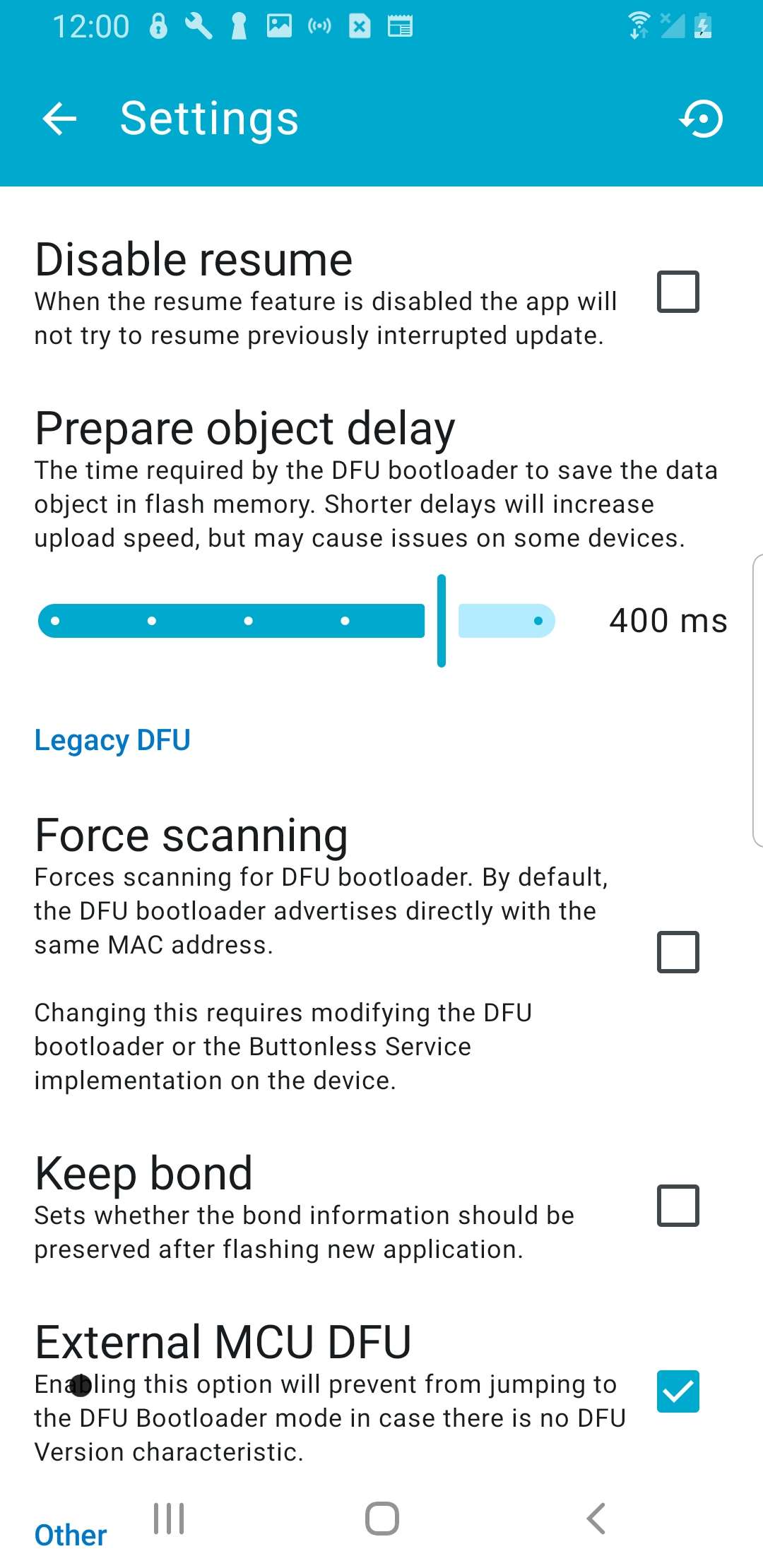
…scrolled down. -
Send the update
In the DFU app, tap File → Downloads, pick the
.zipyou downloaded, select your device (e.g.4631_DFU), and press Start. It runs over Bluetooth LE — give it a few minutes and keep the phone close and awake.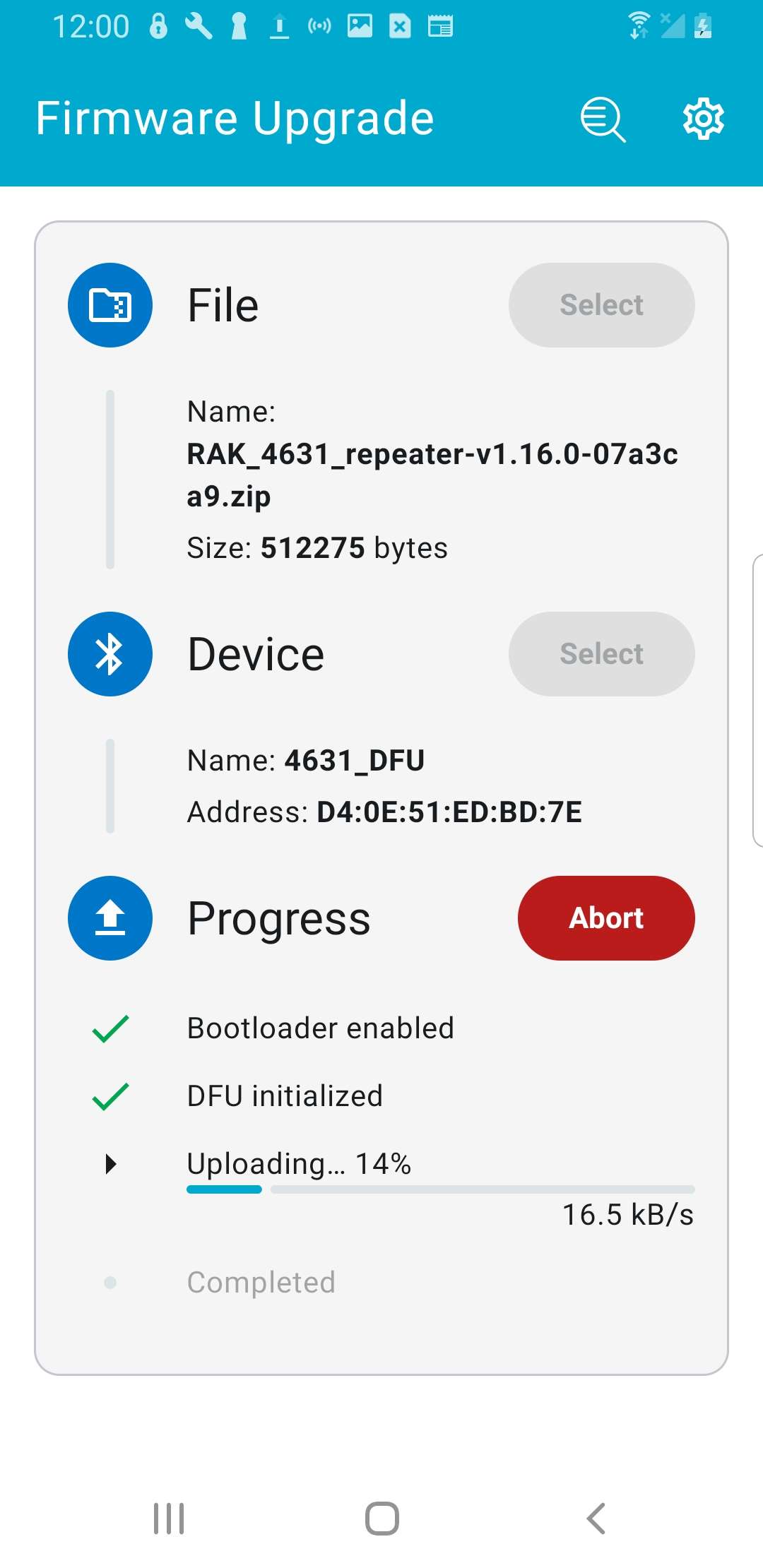
The transfer in progress. -
Finish: log back in & sync the clock
The node reboots into the new firmware. Log back in and sync the clock (the app has a sync option, or run
clock sync) — that’s it. No cable, no ladder.
On iPhone, turn off Auto-Lock first. Open Settings → Display & Brightness → Auto-Lock → Never and keep the nRF app in the foreground the whole time. iOS suspends Bluetooth when the screen sleeps — if it locks mid-transfer, the OTA drops and you start over. (Set Auto-Lock back when you’re done.) Android doesn’t have this issue and transfers noticeably faster — if you’ve got one, use it for OTA.

# MeshCore app → Manage → Command Line
> start ota
OK - mac: E1:5A:…:9C # now in OTA mode → switch to the DFU appESP32 boards — OTA over WiFi
Heltec V3 and other ESP32 nodes update over a temporary WiFi hotspot — no DFU app, no OTAFIX bootloader.
-
Download the firmware
.zipFrom flasher.meshcore.io, grab the OTA build for your board.
-
Start OTA
Log into the node (admin) → Command Line →
start ota. The app’s Repeater Admin page then shows a URL to upload through. -
Upload in a browser
Connect to the node’s WiFi, open that URL in a browser, select your firmware, and press Start.
-
Finish
Once it reboots, log back in and sync the clock.
If an update gets stuck
- Stuck on “Initializing DFU…”? Disconnect and tap Start again — the second attempt almost always goes through.
- This is where OTAFIX earns its keep. A failed transfer drops the board back into OTA mode (advertising as
*_OTA), waiting for a retry — so you fix it over the air. Without OTAFIX, that same failure can strand the node. - Last resort (or no OTAFIX): recover over USB — double-press reset for the
UF2drive and re-flash. See the OTAFIX guide; if a reset wiped the node, restore from your backup kit.
Updating a repeater you can’t reach?
Walk through it with the operators in #meshcore — we’ve OTA’d the board you’re holding.